Logging into EnterWorks
Logging into EnterWorks 2020 UI
To log into the EnterWorks 2020 UI, perform the following steps:
- Open the web browser.
- Enter the EnterWorks 10 URL:
http://<servername>.home/enable2020/
- The EnterWorks 2020 Login screen appears.
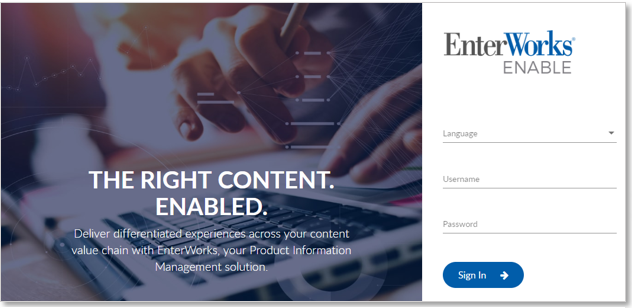
The EnterWorks 2020 Login Screen
- Select a Language, enter the Login ID and Password, and click the Sign In button.
- The user’s Dashboard will appear.
Logging into Enable Classic UI
To log into the Enable Classic UI, perform the following steps:
- Open the web browser.
- Enter the Enable URL :
http://<servername>/webcm/
- The Enable Classic Login screen appears.
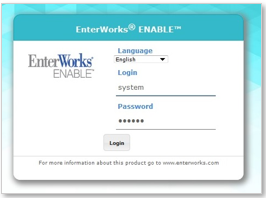
The Enable Classic UI Login Screen
- Select a Language, enter theLogin ID and Password, and click the Logon button.
-
The Enable Classic Startup screen appears.
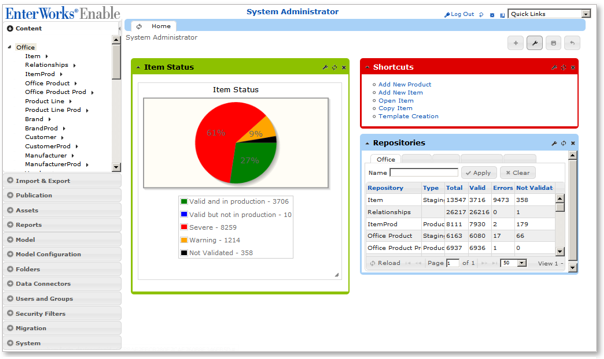
The Enable Classic Startup Screen
Depending upon the user’s permissions, the startup screen may look different. The screen shown here contains all features and functions. The Home Page tab is shown on system entry. Since reports are user specific, an example of three possible report widgets or internal web applications is shown.
For a complete description of the Home Page and functionality available via the Enable Classic UI, see the Enable 8 PIM Administration Guide and the Enable 8 PIM User Guide.
User Dashboard /Home Page
The EnterWorks 2020 UI and the Enable Classic UI have separate landing pages:
- EnterWorks 2020 UI lands on the user Dashboard.
- Enable Classic UI lands on the user Home Page.
The user Dashboard and Home Page are distinct and separate from one another. Modifying one does not change the other. For a detailed guide on using the Enable Classic UI, see the Enable 9 PIM Administration Manual and the EnterWorks PIM v8 User Manual.

Copyright 2007, 2023 Precisely