Purge a Workflow – DO NOT USE
WARNING: Purging a workflow will delete all work items (active and completed) from the workflow, even those not visible to the user. DO NOT USE THIS FUNCTION.
Purging a workflow also clears the Locked in Workflow state for all records associated with the work items.
To purge a workflow, first open the Workflow Task Manager. This can be done either by opening a Workflow Task Manager Widget (seeEnterWorks 10 User Guide) or by opening the Workflow Task Manager in a new tab.
To open it in a tab, open the Features Sidebar by
selecting the Features Sidebar icon  on the Tab Bar, select the Administration tab,
then select Workflow Tasks. The Workflow Task Manager tab will appear.
on the Tab Bar, select the Administration tab,
then select Workflow Tasks. The Workflow Task Manager tab will appear.
|
Workflow Task Manager Detail |
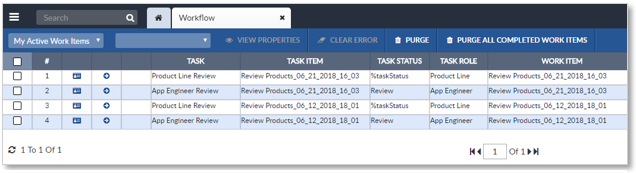
To purge all work items (active and completed) from a workflow:
- Select one item in the workflow and click the Purge
button on the Workflow Task Manager’s Activity Bar. A
confirmation window will appear:
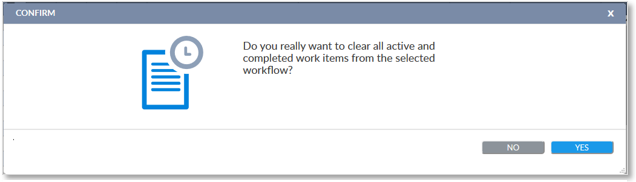
Purge Workflow: Confirm the Purge of All Work Items from a Workflow
- Click Yes to purge all work items.
To purge all completed work items in a workflow:
-
Select one item in the workflow and click the Purge All Completed Work Items button on the Workflow Task Manager’s Activity Bar. A confirmation
window will appear.
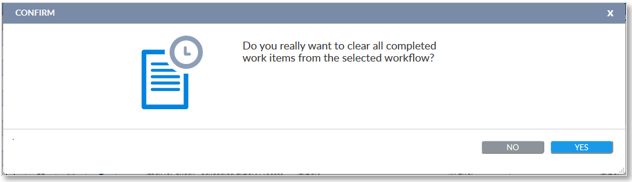
Purge Workflow: Confirm the Purge of All Completed Work Items from a Workflow
- To purge the workflows, click the Yes button.

Copyright 2007, 2023 Precisely