Step 2: Export Configuration
If Advanced Options is checked on the Export Configuration window’s Step 1, the Step 2 screen will appear.
|
Export Records Step 2: Advanced Options |
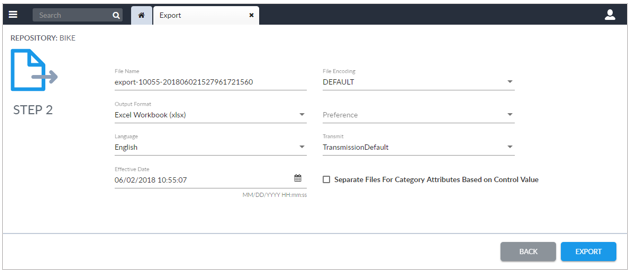
Edit the advanced options as desired:
- File Name: Enter the name of the Export file to be generated.
- Output Format: Select the format of the Export file.
- Language: Selecting a language will trigger the use of the corresponding values for any multi-language attribute fields.
- Effective Date: (Optional) If the Effective Date option is used, EnterWorks examines any Pending Events that relate to the selected records to determine what the records values would be upon that date. It then exports these future record values.
- File Encoding: Specify the file encoding method to be used.
- Preference: (Optional) Select a Preference View to restrict the list of attributes exported.
- Transmit: (Optional) Select a Transmission Option to select a transmission configuration and upon generation of the Export file, transmit it.
- Separate Files For Category Attributes Based on Control Value: If selected, for each Taxonomy node in the selected records, a separate Export file will be generated that includes only the values of global attributes and the Category Attributes attached to the Taxonomy node. This option can be especially useful if the purpose of generating the Export file is to use it to facilitate the importation of data, as there is a 1022 column limit on imported files.
When the advanced options have been edited as desired, click Next to continue to Export Configuration Step 3 or click the Close icon  on the Export tab to exit the
Export procedure.
on the Export tab to exit the
Export procedure.

Copyright 2007, 2023 Precisely