Manage Link Relationships
 Repository View Reference Guide
To manage a record’s links to other records:
-
Open the desired repository in a Repository View. Open the Feature Sidebar, select
the desired folder, and select the desired repository. The repository
will be opened in a Repository View.
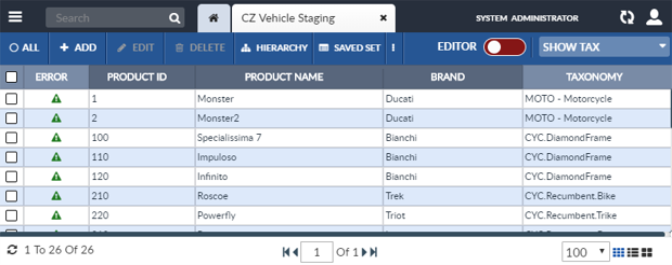
-
Select the desired record and open it in the Detail Editor by clicking the Edit button in the Repository View’s Activity Bar. Alternatively, open the record in the in the Inline Editor by clicking the Editor toggle on the right end of the Repository View’s Activity Bar.
-
Scroll to find the active record’s attribute that defines the linked relationships to be edited. Note that a record may have more than one attribute that defines linked relationships. An attribute’s linked records are listed in a Links Editor.
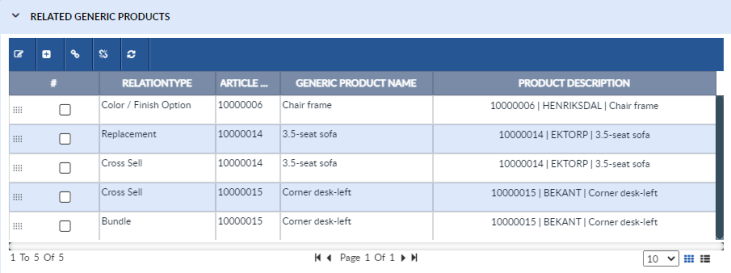
For the purpose of this documentation, this is record is now referred to as the “active record”.
Each button on the Links Editor’s Activity Bar is described below. The set of functions available to perform on Linked Records is based on system configuration and on the functions that apply to the particular type of link relationship. The names of the buttons are configurable, so they may be named differently on different system. Hovering over a button reveals its name.
Select one or more records and then select:
-
Add Link
 : Link the active record to an existing record in the linked
repository.
: Link the active record to an existing record in the linked
repository.
-
Add New
 : Create a new record in the linked repository, link it to the
active record, and open it in the Detail Editor.
: Create a new record in the linked repository, link it to the
active record, and open it in the Detail Editor.
-
Copy: Create a new item record based on an existing linked item record.
-
Delete: Delete one or more linked item records.
WARNING: This button deletes both the link to the item record and the item record itself. Use the Remove Link button to remove only the link and keep the underlying child record.
-
Edit
 : Open the linked record in the Detail Editor.
-
Open in a New Window: Open the selected linked record in a Detail Editor window. This only works if only one record is selected.
-
Open Link Table in Window: Open the list of linked records in a Repository View window.
-
Open Link Table in Tab: Open the list of linked records in a separate Repository View tab.
-
Remove Link
 : Remove one or more link
relationships from the active record.
: Remove one or more link
relationships from the active record.
-
Refresh
 : Reload the list of linked records displayed in the
Links Editor.
: Reload the list of linked records displayed in the
Links Editor.
-
If the link relationships are to Digital Assets, an Upload icon
 will appear on the far right of the Links Editor.
This allows the user to upload one or more
Digital Asset files to the target repository, create a metadata record in
DamMaster for each of the files, and link the metadata record(s) to the
active record.
will appear on the far right of the Links Editor.
This allows the user to upload one or more
Digital Asset files to the target repository, create a metadata record in
DamMaster for each of the files, and link the metadata record(s) to the
active record.
The order in which linked records are displayed can be changed by clicking the column headers to sort on column values.
The List View controls in the bottom right of the Links Editor allow the user to view the linked records in the Grid View or the Card View.
At the bottom of the Link Editor are Number of Pages, Page Selector, and Number of Records Per Page controls.
Add Linked Relationship
To add a link relationship to a record:
-
Open the desired record in the Detail Editor. For the purpose of this document, this record is now referred to as the “active record”.
-
Scroll to find the active record’s attribute that defines the linked relationships to be edited. Note that a record may have more than one attribute that defines linked relationships. An attribute’s linked records are listed in a Links Editor.
-
Click the Add Link
button in the
Link Editor’s Activity Bar. The linked repository will be
brought up in a Repository View. A green
Add Link button will appear in the
Repository View’s Activity Bar.
-
If you are adding a link to an existing Digital Asset, the slider bar just below the Repository View’s Activity Bar will increase or decrease the size of the image in the view screen. This does not actually change the image; it only displays the image larger or smaller.
-
Select the record to be linked to the active record and click the Add Link button. The link will be added to the active record’s list of linked relationships.
Add New Linked Record
To create a new record and link it to an existing record:
-
Open the desired record in the Detail Editor. For the purpose of this document, this record is now referred to as the “active record”.
-
Scroll to find the active record’s attribute that defines the linked relationships to be edited. Note that a record may have more than one attribute that defines linked relationships. An attribute’s linked records are listed in a Links Editor.
-
Click the Add New
button on the
Links Editor’s Activity Bar.
-
A new record will be created in the linked repository, linked to the active record, and opened in a new Detail Editor. Note that any calculated field values will be generated when the linked record has been saved.
Edit a Record’s Linked Record
If the linked record is a Digital Asset record, the data being edited is actually the metadata for the Digital Asset, not the Digital Asset itself.
To edit a record’s linked record
-
Open the desired record in the Detail Editor. For the purpose of this document, this is record is now referred to as the “active record”.
-
Scroll to find the active record’s attribute that defines the linked relationships to be edited. Note that a record may have more than one attribute that defines linked relationships. An attribute’s linked records are listed in a Links Editor.
-
Select the linked record to be edited and click the Edit
button on the Links Editor’s Activity Bar. Alternatively, double click
any of the linked record’s attribute fields.
-
The linked record will be opened in a new Detail Editor. Edit and save the record as desired.
Remove Link Relationship
Removing a link relationship from a record will not delete the linked record. It will only disassociate the record from the linked record.
To disassociate one or more linked records from a record:
-
Open the desired record in the Detail Editor. For the purpose of this document, this is record is now referred to as the “active record”.
-
Scroll to find the active record’s attribute that defines the linked relationships to be removed. Note that a record may have more than one attribute that defines linked relationships. An attribute’s linked records are listed in a Links Editor.
-
Select one or more linked records to be disassociated from the active record.
-
Click the Remove Link
button in the
Links Editor’s Activity Bar. The links will be removed
from the active record. The now unlinked records are not deleted from the
system.
Refresh Link
Links Editors
do not refresh automatically as their content changes. To refresh the
content of a Links Editor, select the Refresh
button in the Links Editor’s Activity Bar. The contents of the
Links Editor will be updated.
Upload Digit Asset File and Add Link
By clicking the Upload icon
on the far right of the Links Editor, a user can trigger
EnterWorks to upload one or
more Digital Asset files to the target repository, create a metadata record
in DamMaster for each of the new files or update the metadata records for
existing files, and link the metadata record(s) to the active record.

Copyright 2007, 2023 Precisely