Configure DAM with ImageGlue to Use Amazon S3
 Wildfly vs Jboss; Controller/Worker vs Master/Slave; Services Names
Controller/Worker vs Master/Slave: EnterWorks software prior to version 10.1.x used the terms "master" and "slave" rather than "controller" and "worker" in process and folder names. Folders and processes in newer versions of EnterWorks use the terms "controller" and "worker". If you are installing or patching an older version of EnterWorks, you may need to adapt the filepaths and process names accordingly. For instance, if this documentation refers to:
<drive>:\Enterworks\EnableServer\jbossController\standalone\configuration\conf\sharedConfig.properties
you may need to use the filepath:
<drive>:\Enterworks\EnableServer\jbossMaster\standalone\configuration\conf\sharedConfig.properties
Wildfly vs Jboss: Additionally, Red Hat has changed the name of their JBoss platform to Wildfly. Depending on the version of EnterWorks you are running, the names of some folders and processes may appear as either JBoss or Wildfly. If you are installing or patching an older version of EnterWorks, you may need to adapt the filepaths and process names accordingly. For instance, if this documentation refers to:
<drive>:\Enterworks\EnableServer\WildflyController\standalone\configuration\conf\sharedConfig.properties
you may need to use the filepath:
<drive>:\Enterworks\EnableServer\jbossMaster\standalone\configuration\conf\sharedConfig.properties
Microservice names: The names of the microservices have also been updated. The prefix of "enable2020-" has been changed to "enable-". For instance:
enable2020-channel-readiness-service
is now called:
enable-channel-readiness-service
Before configuring DAM to use Amazon S3, EnterWorks must already be configured to run ImageGlue. If you are configuring DAM as part of a fresh install or patch deployment, make sure you have completed all the steps for installing EnterWorks and deploying the patch before you configure DAM to use Amazon S3. Installation and patch deployment instructions are given in the EnterWorks Installation Guide.
The following variables are used in this documentation to describe the configuration parameters for AWS S3. Please substitute the variables with your values.
-
<AWSAccessKeyID>: the AWS Access Key ID.
-
<AWSSecretKey>: the AWS Secret Access Key.
-
<AWSBucketName>: the name of the bucket in which DAM is to be stored.
-
<AWSDamrootFolder>: the name of the folder in the designated bucket, for example: "DAMRoot".
-
<AWSS3Mode>:
-
env: Uses flags for credentials, (defaults to env).
-
iam: Uses IAM Role.
-
-
<AWSRegion>: the region name for the S3 storage.
-
<AWSS3PublicRead>: Sets the ability for the public to read files uploaded to AWS S3.
-
true: yes, (defaults to true).
-
false: no.
-
-
<RoleBasedAuth>:
-
true: if you are using role-based security.
-
false: if you are not using role-based security.
-
In this procedure you will be editing settings in configuration files and scripts. Several of the files have one or more settings whose name includes "AWSAccessKey". In some of those files you will be directed to set this setting to <AWSSecretKey> and in some you will be directed to set it to <AWSAccessKeyID>. This is intentional. Please set the values of those settings as directed.
To configure EnterWorks to use Amazon S3:
-
Open the
DamConfigrepository and set:DamAssetURL
to:
http://s3.amazonaws.com/<AWSBucketName>/<AWSDamrootFolder>
-
Open the
DamVariantrepository and set:OutputPath
to:
<AWSDamrootFolder>/<VariantName>
-
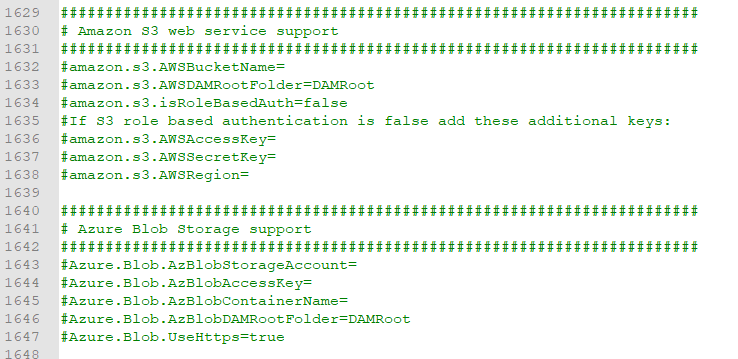
Update the shared configuration properties:
- DAM can only be configured to use one cloud storage at a time.
If any other cloud storage is configured, comment out those settings.
-
Set the following values:
amazon.s3.AWSBucketName=<AWSBucketName>
amazon.s3.AWSDamrootFolder=<AWSDamrootFolder>
amazon.s3.isRoleBasedAuth=<RoleBasedAuth>
amazon.s3.AWSRegion=<AWSRegion>
-
If
amazon.s3.isRoleBasedAuthis false, add the following additional keys.amazon.s3.AWSAccessKey=<AWSAccessKeyID> amazon.s3.AWSSecretKey=<AWSSecretKey>
-
Set
dam.use.asset:-
If
dam.use.asset.url=true, if S3 is configured for public access, EnterWorks will use the public URL to retrieve an asset. -
If
dam.use.asset.url=false, EnterWorks will use credential (access key and secret key) or secured session through a role based authentication by the Customer.
-
- DAM can only be configured to use one cloud storage at a time.
If any other cloud storage is configured, comment out those settings.
-
Set Amazon S3 configuration parameters for
enable-dam-manager-service:-
The
create-<service-name>-service.cmdscripts should exist in the following folder. If they do not, create the create-service scripts.<drive>:\Enterworks\enable2020\services\install
-
Open the installation script
create-enable-dam-manager-servicein the folder:<install-drive>:\Enterworks\enable2020\services\install\
-
If the following flags don't exist, add them.
-awsAccessKey=<AWSSecretKey> ^
-awsAccessKeyId=<AWSAccessKeyID ^
-awsBucketName=<AWSBucketName> ^
-awsDAMRootFolder=<AWSDamrootFolder> ^
-awsMode=<AWSS3Mode> ^
-awsRegion=<AWSRegion> ^
-awsS3PublicRead=<AWSS3PublicRead> ^
-
Save and exit the file.
-
Right-click
create-enable-dam-manager-service.cmdand run it as administrator. -
Verify that
enable-dam-manager-serviceis running.
-
-
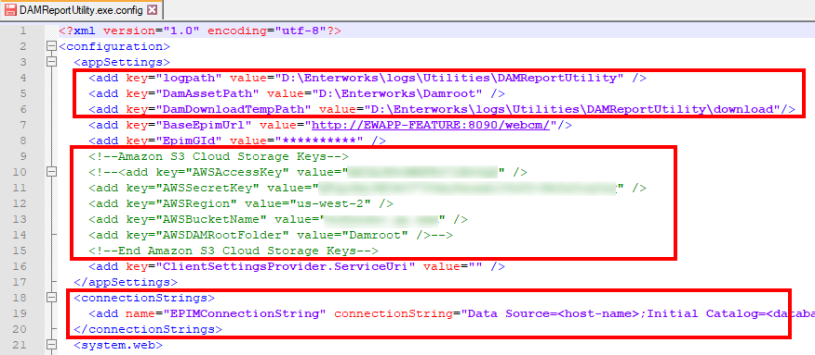
In each of the following files:
<drive>:\Enterworks\Utilities\MonitorDAMDrop\MonitorDamDrop.exe.config
<drive>:\Enterworks\Utilities\DAMReportUtility\DAMReportUtility.exe.config
<drive>:\Enterworks\Utilities\RegenerateDAMVariant\RegenerateDAMVariant.exe.config
-
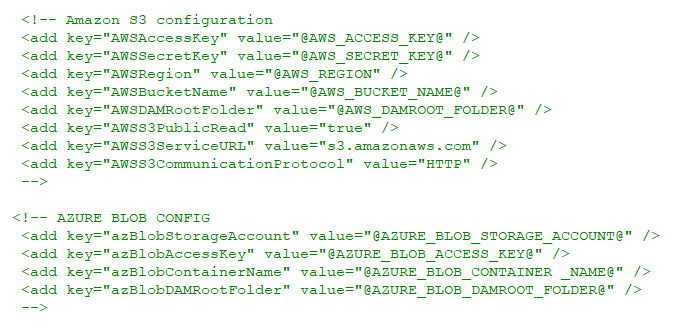
DAM can only be configured to use one cloud storage at a time. If any other cloud storage is configured, comment out those settings.
-
Un-comment out and specify the values for:
<!--Amazon S3 Cloud Storage Keys
<add key="AWSAccessKey" value="<AWSAccessKeyID>" />
<add key="AWSSecretKey" value="<AWSSecretKey>" />
<add key="AWSRegion" value="<AWSRegion>" />
<add key="AWSBucketName" value="<AWSBucketName>" />
<add key="AWSDAMRootFolder" value="<AWSDamrootFolder>" />
<add key="AWSS3PublicRead" value="true" />
End Amazon S3 Cloud Storage Keys-->
-

Copyright 2007, 2023 Precisely