Change EnterWorks System Password After Installation
There are two “system” users in EnterWorks:
Both default to the system password.
In the following steps, if any of the passwords you are replacing are encrypted, use the following script to encrypt the new passwords.
<drive>:\Enterworks\EnableServer\bin\getEncryptedString.bat
To change the EnterWorks UI system password:
-
Change the password using the New UI.
-
Change the password in the affected micro-services.
To list a microservice's parameters, run the executable with the
-hoption as shown in the example below.<install-drive>:\EnterWorks\enable2020\services\bin\<service-name>.exe -h
-
The
create-<service-name>-service.cmdscripts should exist in the following folder. If they do not, create the create-service scripts.<drive>:\Enterworks\enable2020\services\install
-
Edit
create-enable-channel-readiness-service.cmd. Set the values of the following parameters to the new password. (If the parameters don't exist, add them.)-systemLogin= -systemPassword=
-
Edit
create-enable-web-server-service.cmd. Set the values of the following parameters to the new password. (If the parameters don't exist, add them.)-systemLogin= -systemPassword=
-
Edit
create-enable-dam-manager-service.cmd. Set the values of the following parameters to the new password. (If the parameters don't exist, add them.)-systemLogin= -systemPassword=
-
Edit
create-enable-monitor-dam-drop-service.cmd. Set the values of the following parameters to the new password. (If the parameters don't exist, add them.)-systemLogin= -systemPassword=
-
-
Configure the Utilities with the new passwords:
-
Set the passwords for RegenerateDAMVariant.
-
Open for editing:
<drive>:\Enterworks\Utilities\RegenerateDAMVariant\regenerate-variant-config.json
-
Set the values of the following parameters to the new password. (If the parameters don't exist, add them.)
systemLogin
systemPassword
-
-
Set the passwords for MonitorDAMDrop:
-
Open for editing:
<drive>:\Enterworks\Utilities\MonitorDAMDrop\MonitorDAMDrop-config.json
-
Set the values of the following parameters to the new password. (If the parameters don't exist, add them.)
systemLogin
systemPassword
-
-
Set the passwords for DAMReportUtility:
-
Open for editing:
<drive>:\Enterworks\Utilities\DAMReportUtility\DamReportUtility-config.json
-
Set the values of the following parameters to the new password. (If the parameters don't exist, add them.)
systemLogin
systemPassword
-
-
-
Changing the password for EPX.
There should be no need to change the EPX system user password since no one has direct access to EPX. If a security audit is done, it may show an HTML login page for EPX that allows access as user system, but this particular page is normally not needed and can be removed or moved, (as it is for the EPX web interface). If the EPX web interface is needed for troubleshooting purposes, it can be moved back into place for the duration of that activity and then re-removed.
If the password for EPX does need to be changed, perform the following:
-
Open the file:
<drive>:\Enterworks\EPX\bin\conf\Enterworks.properties
-
Assign the value of the following settings to the new password:
epim.userName=
epx.server.systemPassword=
-
Open Design Console on the server hosting the EPX services.
-
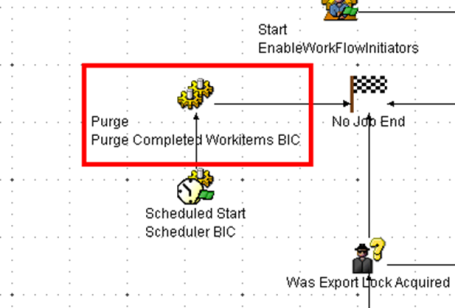
For each workflow, edit any Purge Completed Workitems BIC activity by double-clicking it or right-clicking it and selecting Properties.
-
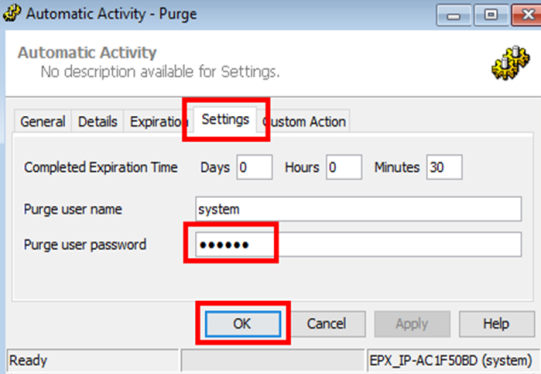
Open the Settings tab.
-
Enter the new password in the Purge user password field
-
Click OK.
-
-
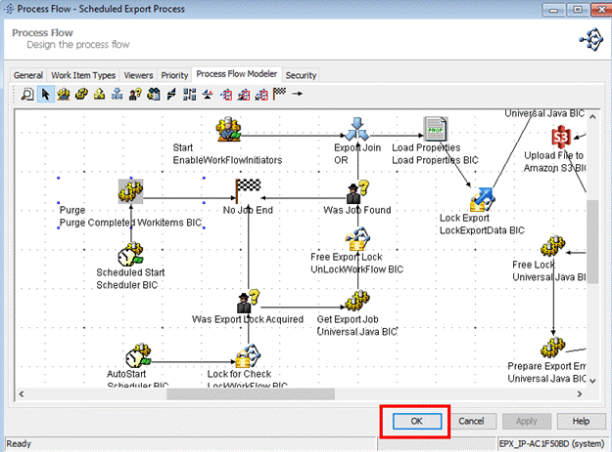
When you are done editing the workflow, click OK.
-
Repeat for each workflow.
-
-
Move to:
<drive>:\Enterworks\enable2020\services\bin
and run the create-service scripts as an administrator:
-
create-enable-channel-readiness-service.cmd -
create-enable-web-server-service.cmd -
create-enable-dam-manager-service.cmd -
create-enable-monitor-dam-drop-service.cmd
-

Copyright 2007, 2023 Precisely