Azure Blob Configuration for ImageGlue
Prerequisites
-
.NET Framework: There is a step in the beginning of the procedure to download and install the proper version of .NET Framework. (See Supported Third-party Software.)
-
The following must be acquired for Azure Blob:
-
Azure Account subscription: This allows the user to set up and manipulate different Azure infrastructures such as security, monitoring systems, blobs, containers, etc.
-
Azure storage account name: This is the name of the account needed to establish connection.
-
Azure storage account key: The secret key needed to establish connection.
-
Blob container: A public or private place holder for all blobs and files.
-
Terms
The following variables are used in this section to describe the configuration parameters for Azure Blob. Please substitute them with your values.
-
<azBlobStorageAccount>: The name of the Blob Storage Account.
-
<azBlobAccessKey>: The key for accessing Azure Blob.
-
<azBlobContainerName>: The name of the container in which DAM is to be stored.
-
<azBlobDAMRootFolder>: The name of the folder in the designated container, for example: "DAMRoot".
Configuration Procedure
Any configuration changes that are done on the following directories must be done on all servers where these directories are found.
To configure an EnterWorks system running ImageGlue:
-
Use the
BackupForDeployment.batscript to back up the following folders on any servers where they exist:-
<drive>:\Enterworks\EnableServer
-
<drive>:\Enterworks\enable2020
-
<drive>:\Enterworks\Utilities
-
-
See Supported Third-party Software to determine which version of Microsoft .NET Framework is required. If the required version of Microsoft .NET Framework has not yet been installed:
-
Download it from:
https://dotnet.microsoft.com/download/dotnet-framework
-
Install Microsoft .Net Framework.
-
Restart the VM.
-
-
Configure the Utilities. For each of the utilities:
perform the following steps:
-
In the file:
<drive>:\Enterworks\Utilities\utility\utility.exe.config
-
DAM can only be configured to use one cloud storage at a time. If any other cloud storage is configured, comment out those settings.
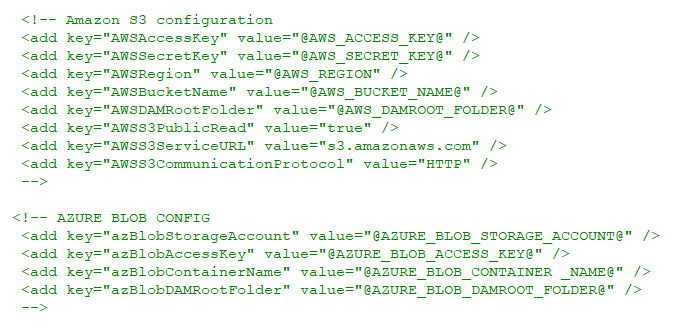
-
Un-comment out or add the following keys, then specify their values:
<add key="azBlobStorageAccount" value="<azBlobStorageAccount>" />
<add key="azBlobAccessKey" value="<azBlobAccessKey>" />
<add key="azBlobContainerName" value="<azBlobContainerName>" />
<add key="azBlobDAMRootFolder" value="" />
-
-
-
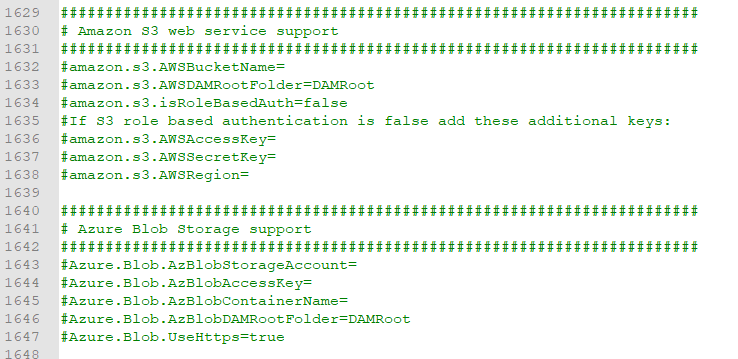
Update the shared configuration properties:
- DAM can only be configured to use one cloud storage at a time.
If any other cloud storage is configured, comment out those settings.
-
Set the Azure Blob settings. If they don't exist, add them.
Azure.Blob.AzBlobStorageAccount=<azBlobStorageAccount>
Azure.Blob.AzBlobAccessKey=<azBlobAccessKey>
Azure.Blob.AzBlobContainerName=<azBlobContainerName>
Azure.Blob.AzBlobDAMRootFolder=<azBlobDAMRootFolder>
Azure.Blob.UseHttps=true
-
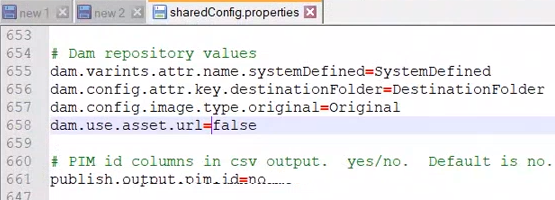
Additionally, set the following:
dam.use.asset.url=false
- DAM can only be configured to use one cloud storage at a time.
If any other cloud storage is configured, comment out those settings.
-
Perform the DAM Operational Verification procedures.

Copyright 2007, 2023 Precisely