
Creating workflows
A workflow consists of a sequence of connected steps to be applied to a one or more communications. Each step in the workflow defines the users/groups that can approve the step.
To create a workflow:
- From your Home page click
 Admin from the
navigation bar.
Admin from the
navigation bar. - Click Review and Approval Workflows.
- Click New Workflow
- Enter the name and a meaningful description to be assigned to the workflow.
Note: At least one review step must be added to the workflow before it can be saved.
- Click Add Review and enter the following:
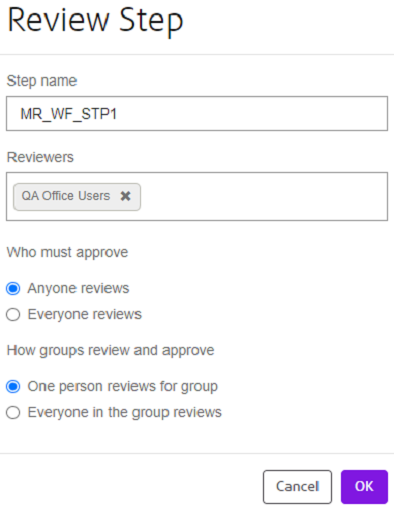 Note: the workflow definition must be saved after adding or updating a workflow step.
Review step entry fields
Entry field Mandatory Description Step name Yes Each step has a name. The name is a useful way to distinguish the purpose of one step from another in a process. Reviewers Yes Choose the required users/groups that will perform the review step. Who must review Yes This determines how the review step is performed, as follows: Anyone
If you choose this option, the step will be completed by the first user who claims it. When the step has been claimed no other user will be able to claim it.Everyone
If you choose this option, the step must be completed by every reviewer for the step to be complete. Note that the step will complete on the first rejection.How groups review Yes If you have included groups in the Who must review list then this option determines how those groups are treated as follows: One person reviews for the group
The group’s contribution to the step will be complete when the first user in the group completes the step.Everyone in the group must review
The group’s contribution to the step will be complete when every user in the group completes the step with an approval or, at the first rejection. - Click OK twice, once to save the review and again to save the workflow.
You will be returned to the workflow details page presenting all steps associated with the workflow:
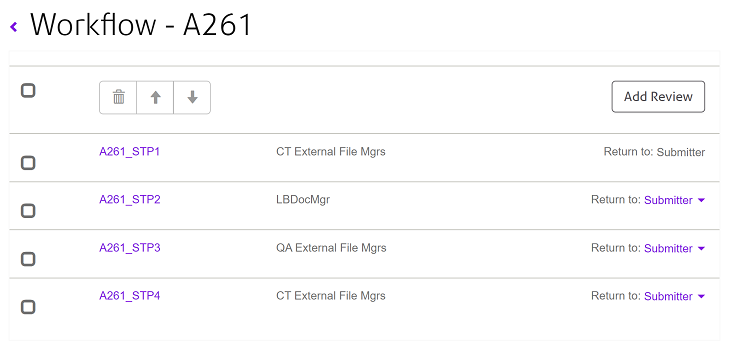
Note:
- Click on the required workflow step name to edit the step.
- Select an individual or all steps for deletion.
- Select one or more steps to move up or down the list using the up/down arrows.
- Use the Return to link to designate a previous step to return to if the current review step has an outcome of Rejected..