
Parameters Tab
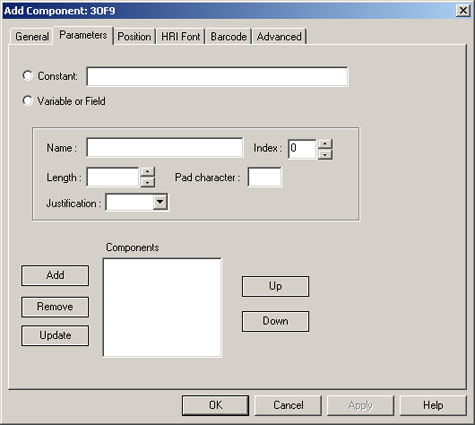
The Parameters tab allows you to specify the data that will be used to generate the object. The fields on this tab are described next.
- Constant: The value for the object you are adding is a constant string. The string you specify varies depending on the type of object.
- For TEXT or TLE all characters are valid.
- For 3OF9, only numbers, uppercase alphabetic characters, special characters (-, $, /, +, %), and the space character (EBCDIC=X'40', ASCII=X'20') are valid as constant values. In addition, the first and last characters of the barcode must be asterisks (*). The asterisks should not be included for 3OF9 if you specified BCOCA on the General tab.
- For 2OF5 and Matrix 2OF5, only numeric characters (0 through 9) are valid as constant values.
- For DataMatrix and PDF417, alphanumeric characters are valid.
- For Code 128, all ASCII characters are valid.
- For PLANET and POSTNET, up to 16 characters, 12 numeric characters (up to 14 numeric characters for PLANET) and 2 framing, non-numeric characters. For example, !012345678901!.
- For 4STATE, a sequence of digits from 0-3 that represent each bar in the barcode. You can use the FOURSTATE function to generate this sequence of digits.
- For <ADDTYPE> OMR, a numeric string to add in one of the following formats:
- A literal numeric string that contains any whole number from 1 to 16383.
- A binary string that contains up to 14 characters.
- A hexadecimal string that contains from one to four characters. If the string contains four characters, the first character cannot exceed 3.
- For ChinaPost, only numeric characters (0 through 9) are valid as constant values.
- Variable or Field: A variable name or field to include in the added barcode or text.
- Name: The name of a variable or field that you want to use as data for the object.
- Index: If using an array variable, this specifies the element in the array to use to populate the object.
- Length: Varies based on the object type, as follows:
- For TEXT, TLE, 2OF5, CHINAPOST, MATRIX25, 3OF9, FORM, IMAGE, PLANET, and POSTNET, CODE128, DATAMATRIX, and PDF417, length is the length in bytes of the variable value identified in the Name field. EngageOne™ Enrichment uses the justify and pad values to correctly position and lengthen the variable value. For PLANET and POSTNET, the maximum length is 16, including the 2 framing non-digit characters. For FORM and IMAGE, the maximum length is 8.
- For OMR, length is the maximum number of Optical Mark Recognition (OMR) marks to use for a variable (from 1 to 14). For OMR, you can set the variable name to the system variable %%OMR_EVEN or %%OMR_ODD, which adds an extra mark if necessary to ensure an even (%%OMR_EVEN) or odd (%%OMR_ODD) number of OMR marks.
You can specify a length value for OMR constants. This enables you to "pad" the space before another add part so that it begins in a fixed position.
OMR marks cycle from 1 to the total number of marks specified and then back to no marks to repeat the cycle, as in binary counting.
- For 4STATE, each digit represents a single bar and the length is the maximum number of bars.
- Pad Character: A single character to pad the variable value to length. The pad character can be a letter, number, special character, hexadecimal character, or blank. A space surrounded by single quotation marks (' ') indicates a blank pad character.
- Justification: Specifies how EngageOne™ Enrichment should position a variable value that is shorter or longer than the length value, as follows:
- Left-justify: If the value is shorter than length, EngageOne™ Enrichment places pad characters after it. If the value is longer than length, EngageOne™ Enrichment truncates it from the right.
- Right-justify: If the value is shorter than length, EngageOne™ Enrichment places pad characters before it. If the value is longer than length, EngageOne™ Enrichment truncates it from the left.
- Add: Click this button to make the constant or variable from the top of the window part of the object you are adding (this is required if you want it to be included) When you click Add, the constant or variable appears on to the Components list. You can add multiple components.
- Remove: Select an item from the Components list and then click Remove to remove the item.
- Update: Click this button to modify a component that is already in the Components list.
- Up/Down: Changes the order of the components that are used to assemble the value of the added object. Select the component that you want to move up or down then click Up or Down.