
Exporting resources
Devices are listed on the Resources tab by the device identifier with the device name in parentheses, for example AFPDS 240 (afp240). Columns headings are sortable. The Resources tab shows the fonts and images used by each device that is defined in your system. If a resource required by the device is missing, it is indicated by a red Missing Resources icon.
The Resources tab also shows the advanced features of each device. Advanced features include support for Unicode and advanced graphics capabilities related to rotation and charts. For more information about these advanced features, see the EngageOne™ Designer User’s Guide.
To export resources to EngageOne™ Designer:
- From Delivery Management, click Resources.
- The Resource
View presents the EngageOne device resources in a tree view. You
can navigate to the individual EngageOne™ resources, such as fonts and images,
by clicking on the required item.
- An orange triangular exclamation mark indicates that for Fonts/Images the resource is missing and for Advanced Feature items that the feature is not supported.. For details, see Working with missing resources.
- Click Show missing resources only to filter the display to only show resources that are missing from one or more devices
- To generate a resource list or resolve missing resources, click Export Resources.
- The Export
Resource List dialog box displays a list of repositories for
which you can export a resource list
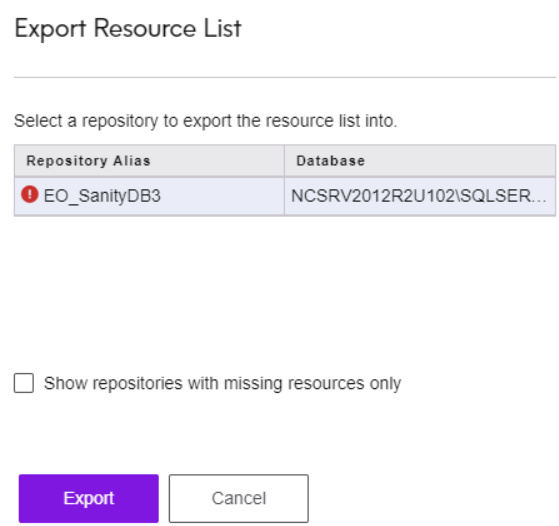
- Click Show repositories with missing resources only to filter the display to only show repositories that are missing from one or more devices.
- Click Export.
- Select the location for download in the Explorer window and name the file as required.
- Click Save.