
Saved Search
The Saved Search functionality allows the user to search the contents of a repository and save the search for later use. A Saved Search may also be shared with other users.
Management of Saved Searches is done in the Saved Search Sidebar.
To Open the Saved Search Sidebar
To open a repository’s Saved Search Sidebar:
- Open the desired repository in a Repository View.
- Open the More
 dropdown on the Repository View's Activity Bar and click Saved
Search.
dropdown on the Repository View's Activity Bar and click Saved
Search. - The Saved Search Sidebar will appear.
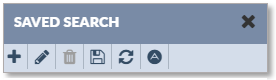
The Saved Set Sidebar’s Activity Bar contains the following buttons:
-
 :
Create a Saved Search.
:
Create a Saved Search. -
 : Edit a Saved Search.
 -
 : Delete a Saved Search.
 -
 :
Save a Saved Search.
:
Save a Saved Search. -
 : Refresh the Saved Search Sidebar.
 -
 : Open the Advanced Search dialog.
Use a Saved Search
To use a Saved Search:
- Open the repository’s Saved Search Sidebar.
- Select the desired Saved Search by clicking the name of the Saved Search, (not by clicking the checkbox). The Saved Search will be applied. Only the records that the search returns will be displayed.
- To disable a Saved Search, either unselect the Saved Search or close the
Active Filter boxes in the Repository View's Active Filter
Bar.

Create a Saved Search
Permitted users can create a Saved Search. To create a Saved Search for a repository:
- Open the repository’s Saved Search Sidebar.
- Create Active Dynamic Filters by using the Filter icons
 in the column headers. When the Dynamic Filters have been applied as desired,
click the Add Saved Search button .
in the column headers. When the Dynamic Filters have been applied as desired,
click the Add Saved Search button . - The Add Search dialog will open. Edit the configuration options as
desired.
-
Name: The name of the Saved Search.
-
Description: (Optional) A description of the Saved Search.
-
AND/OR buttons, (the selected button is darker):
-
AND: Only the records that satisfy all the Active Filters will be displayed.
-
OR: All records that satisfy any of the Active Filters will be displayed.
-
-
Shared: (Optional) If checked, the Saved Search will be available to all other users.
- A list of the Saved Search’s Active Filters. To remove an Active Filter, click the Active Filter box’s Close icon .
-
- Click OK to save the Saved Search and exit the dialog, or click Cancel to exit the dialog without saving the Saved Search.
- The Saved Search will be displayed in the Saved Search Sidebar. The Saved Search Sidebar may need to be refreshed before the new Saved Set appears.
Edit a Saved Search
A Saved Search can be edited by the user who created it. To edit a Saved Search:
- Open the repository’s Saved Search Sidebar.
- Select the Saved Search to be modified.
- Click the Edit button
on the Saved Search Editor’s Activity Bar.
- The Edit Search dialog will open. Edit the configuration options as
desired.
-
Name: The name of the Saved Search.
-
Description: (Optional) A description of the Saved Search.
-
AND/OR buttons, (the selected button is darker):
-
AND: Only the records that satisfy all the Active Filters will be displayed.
-
OR: All records that satisfy any of the Active Filters will be displayed.
-
-
Shared: (Optional) If checked, the Saved Search will be available to all other users.
- A list of the Saved Search’s Active Filters. To remove an Active Filter, click the Active Filter box’s Close icon .
-
- Click the Ok button to save any changes to the Saved Search and exit the Edit Saved Search window. To exit the Edit Saved Search window without saving any changes, click the Cancel button.
- The new Saved Search will appear in the Saved Search Sidebar.
Delete a Saved Search
Permitted users can delete a Saved Search. To delete a repository's Saved Search:
- Open the repository’s Saved Search Sidebar.
- Select the Saved Search to be deleted.
- Click the Delete Saved Search button .
- The Saved Search will be deleted from theSaved Search Sidebar. The Saved Search Sidebar may need to be refreshed before the Saved Set disappears from the display.