
Applies to:
Exporting Winshuttle workflow data to SharePoint lists
You can use Winshuttle Workflow to automatically export workflow data to SharePoint lists and/or predefined database tables (such as a SQL database). This can be useful if you wish to expose assignment and process list information to users other than those strictly involved in the workflow.
By default, the data will be output to a SharePoint list with the standard view. The standard view includes includes the following columns:
- Attachments
- Title
- Modified
- Created By
You can also customize the SharePoint list to display additional columns depending upon the information you wish to show.
How to automatically export to SharePoint lists for Winshuttle Foundation 11.x and above/ Composer
The benefit to automatically exporting to SharePoint lists is that your data is maintained in real time, and the status lists will always have the most current information. If you want to automatically export workflow data you must specify the lists to which you want to export in your workflow.
1. Create SharePoint lists
- On any site on your SharePoint server, create a SharePoint list with the type Winshuttle Process Status List. It does not have to be on the same site as the published process.
- On any site on your SharePoint server, create a list with the type Winshuttle Assignment Status List.
2. Assign the Process and Status List in Winshuttle Composer
- In Winshuttle Composer, open your Workflow.
- In the Property Pane under Publishing, set the Status SharePoint Site property to the site in which you created the lists in steps 1 and 2 of Step 1: Create SharePoint Lists (above).
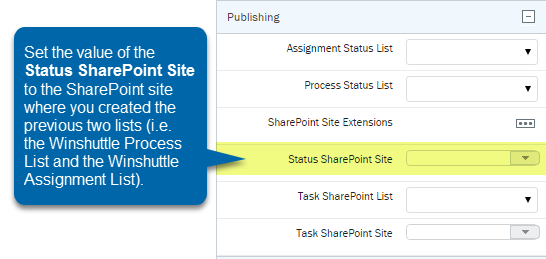
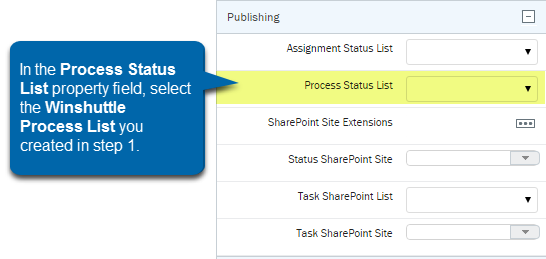
- After Composer has updated the SharePoint Status List Site: Next to the Winshuttle Process Status List property, select the SharePoint Status List (created in Step 1-- Create SharePoint lists ) from the drop down list.
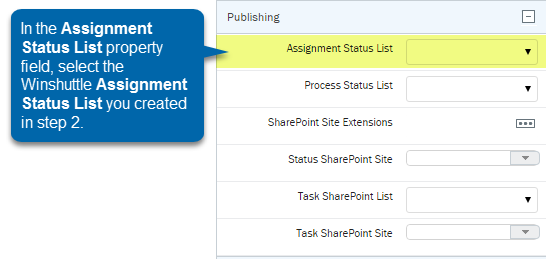
- Next to Assignment Status List property, select the Assignment Status List (created in Step 1-- Create SharePoint lists ) from the drop down list.
The new lists that you created will now become populated in real time with process and assignment data as you create and work through processes.
If you want to include other SharePoint data in these status lists, create additional columns with the same names in the status lists. For example, if you want to include an invoice number from a form that has been promoted in a Composer form to a SharePoint field, then create a field in your status list or lists with the same name and the system will also synchronize those values.
NOTE: You can have one process status list and one assignment status list that contain the workflow data for all sites on your server. Or, you can divide them up into some other logical arrangement to fit your environment.